 Deploy on Vercel
Meetzy Frontend & Admin
Note:The deployment steps on Vercel are identical for both the Meetzy frontend and admin. For demonstration, we will deploy the frontend.
1. Open the meetzy-frontend directory downloaded from CodeCanyon.

2. Environment Settings:
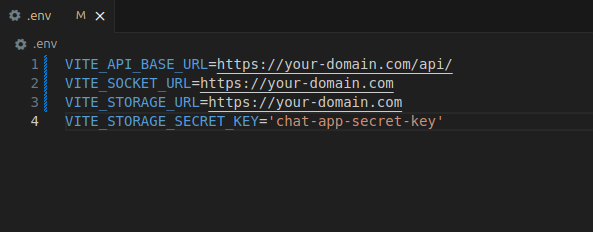
Open the .env file and update the URLs according to your domain settings.
Note:Replace your-domain.com with your actual domain or subdomain. Apply the same change for the backend API domain.
-
VITE_API_BASE_URL: Base URL of the Meetzy backend API.
-
VITE_SOCKET_URL: URL of your Socket.IO server for real-time communication.
-
VITE_STORAGE_URL: File upload/storage access URL.
-
VITE_STORAGE_SECRET_KEY: Secret key for secure storage operations.
3. Install Vercel CLI:
Install the Vercel CLI globally on your computer using the command below.
- npm install -g vercel

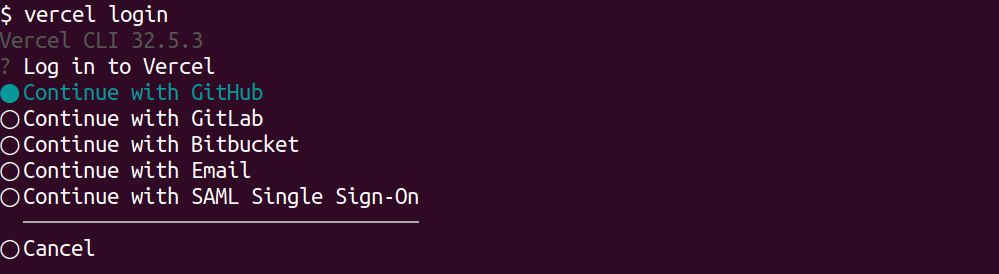
4. Login to Vercel
Log in to your Vercel account using the command below.
- vercel login

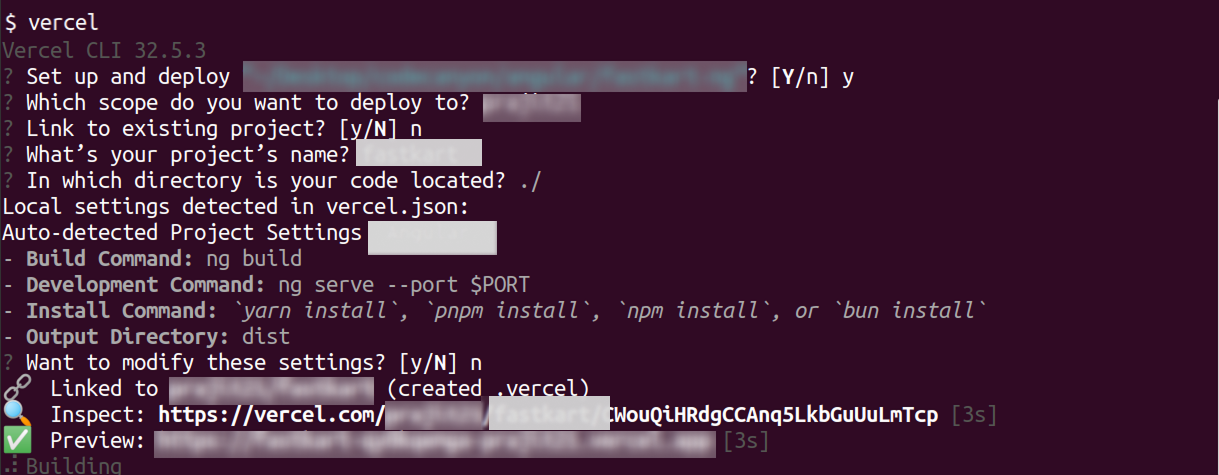
5. Deploy Meetzy:
Inside the meetzy-frontend folder, run the command below:
- vercel
Default Credential
Admin Credential:
-Url: https://meetzy-admin-live.vercel.app
-Email: admin@meetzy.com
-Password: 123456789
Frontend Credential:
-Url: https://meetzy-frontend-live.vercel.app
-Email:lily.james@meetzy.com
-Password: 123456789
What's Next?
Let’s begin — your communication workspace is ready with Meetzy!


